
1. Viewing Your Rooms
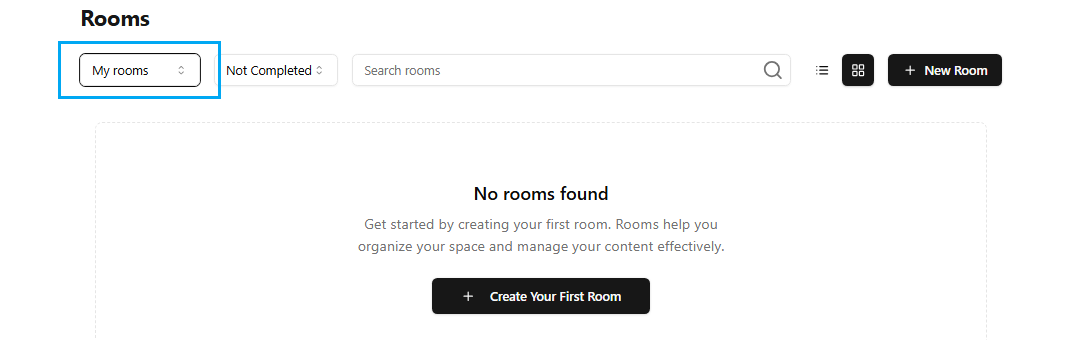
Go to the "My Rooms" section.
Here you will be able to view all the rooms you have created.
2. Filtering Rooms by Status
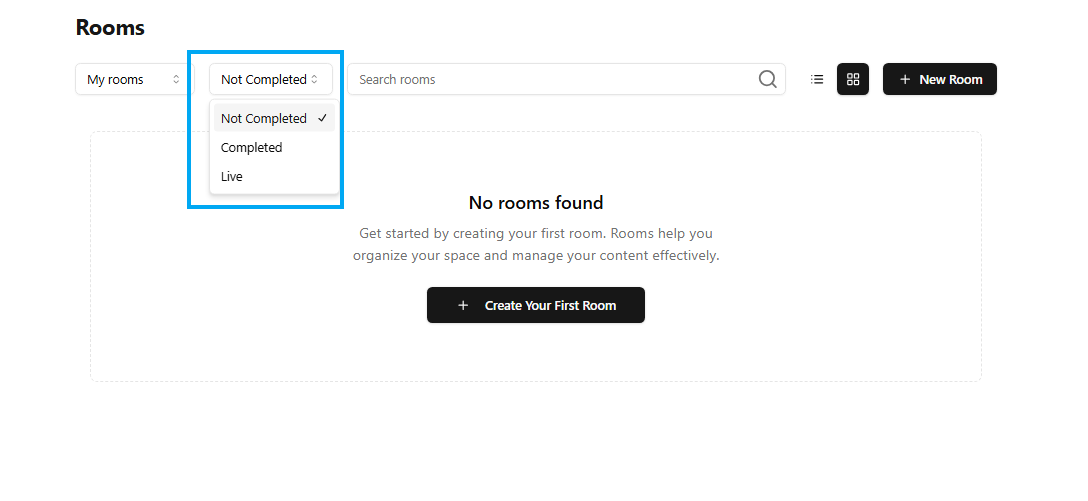
Use the Completed room dropdown option to filter rooms based on status.
The available options are:
Not Completed
Completed
Live
Choose the correct status to see rooms of that type.
3. Room Search
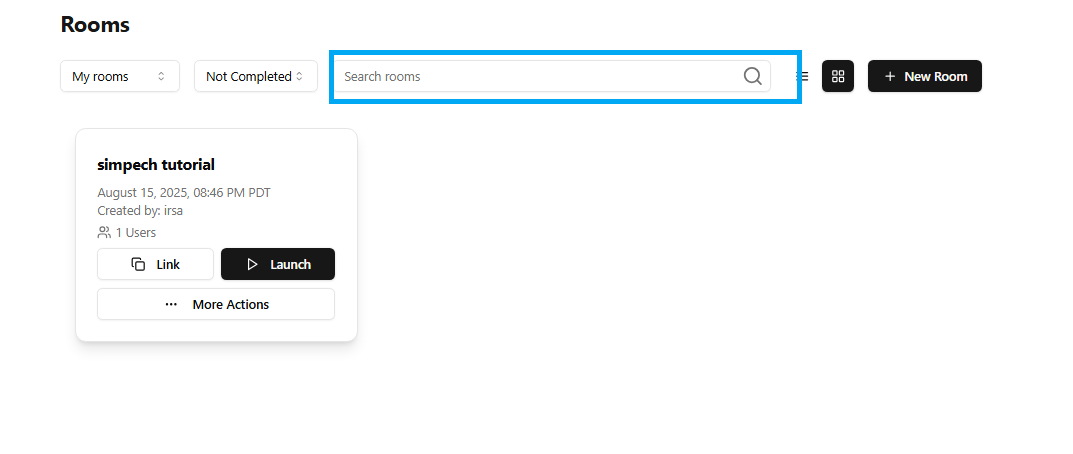
Make use of the Search field to instantly find a certain room you have created.
Just enter the room name to narrow down the list immediately.
4. Switching the Layout View

Switch the display of the room list between two views:
List View
Grid View
Switch using the layout icons close to the search bar to customize the view.
5. Administering Room Actions

In the list of rooms, you can do a number of things:
Copy and share class links to invite someone.
Directly open the class from the list.
6. More Options Menu
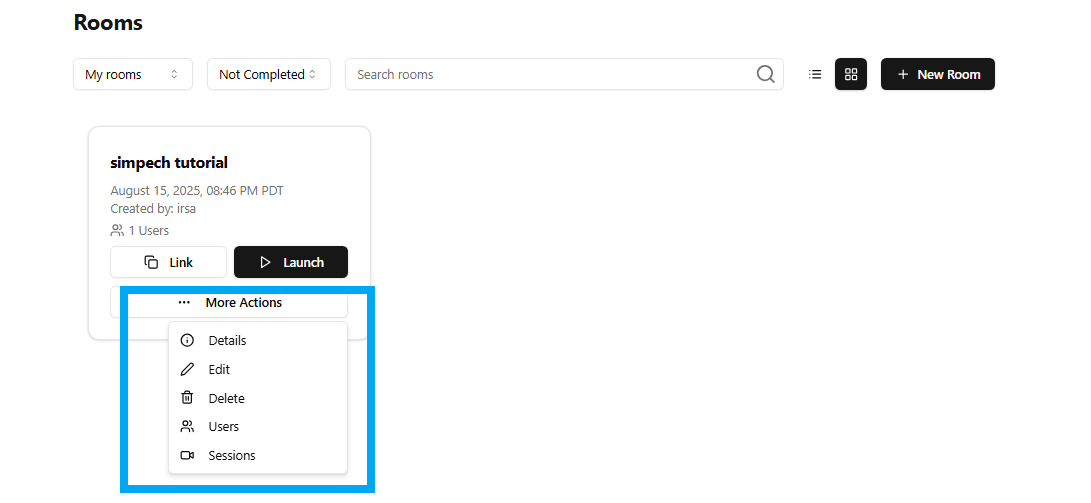
Press the More Options button (typically three dots or equivalent symbol) for every room to view extra actions like:
View Details of the room.
Edit the room settings or details.
Delete the room.
Manage Users who are assigned to the room.
View and manage Sessions in the room.
7. Customizing Your Room
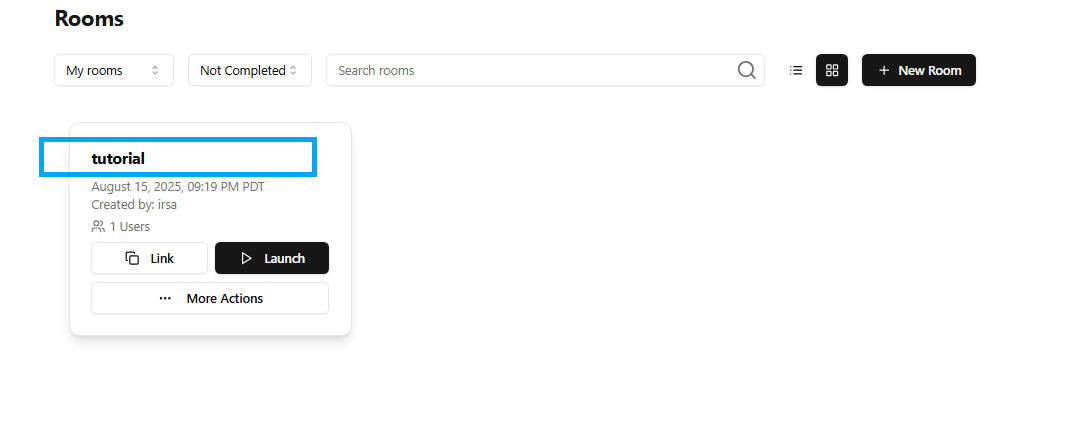
Click on the Name of the room to go to the customization page. Here you will have several tabs to administer your room:
Overview:
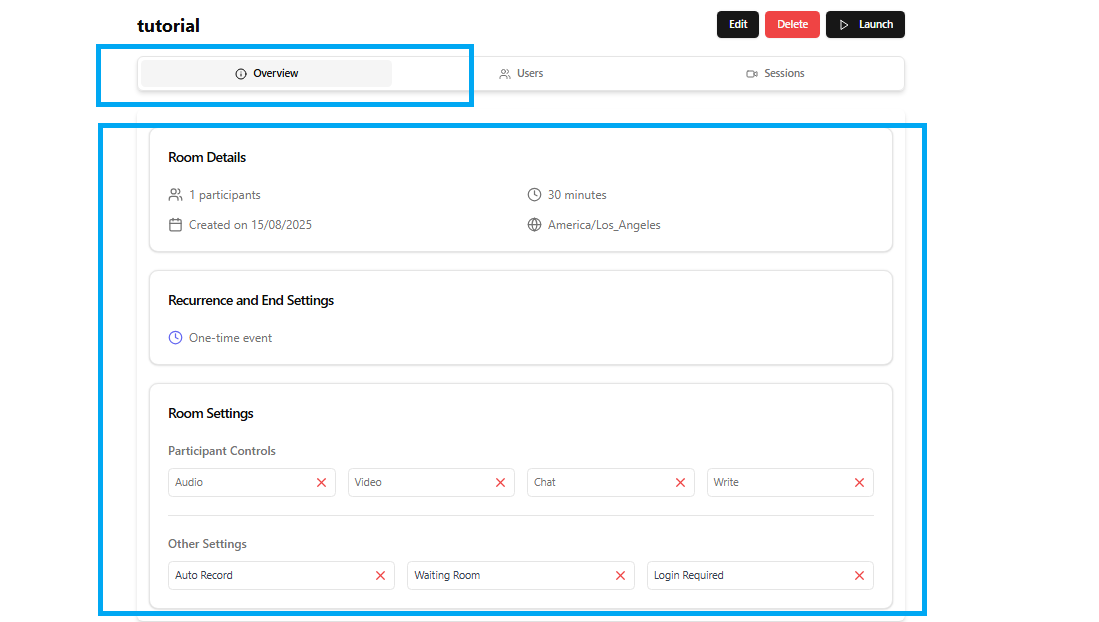
This is the simple data and summary of the room. Here you can see the rooms created by you
Users:

By clicking on users you will see the interface where you can add users manually by searching. You can copy and share the link to your students to join directly.
Sessions:

Administer future sessions and add new sessions to the room calendar.
8. Adding Sessions

Under the Sessions tab, you can view the list of future sessions.
To add a session:
Click on the option to Add Session.
Provide the required information like date, time, and session description.
Save the session in order to book it for room participants.
These steps will allow you to manage your virtual classrooms effectively, track room statuses, personalize room settings, and make your sessions well-organized and easily accessible to your learners.