
The Simpech Virtual Classroom whiteboard is a collaborative area where teachers and students can create, write, brainstorm, and work together in real-time.
Following is how to utilize the tools indicated in the screenshot.
1. Main Menu
Tap the menu icon (three horizontal lines) to view these options:
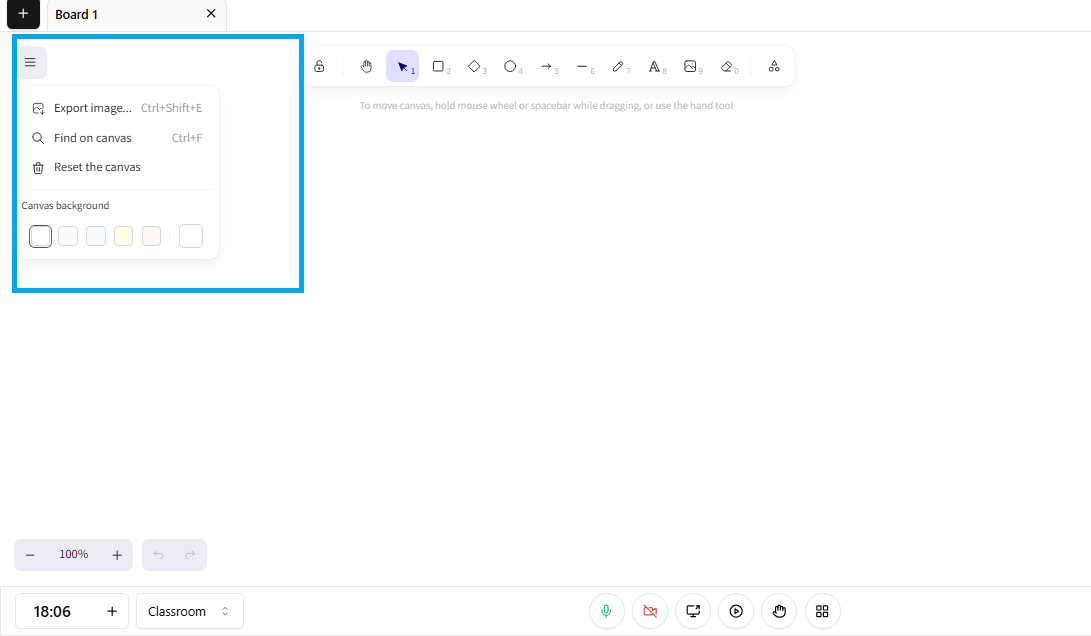
Export image (Ctrl + Shift + E): Save your current board as an image for sharing or record-keeping.
Find on canvas (Ctrl + F) : Look for text or objects on the board.
Reset the canvas: Wipe clean and begin again.
Canvas background color: Select a background color for your board (white, yellow, blue, etc.).
2. Toolbar
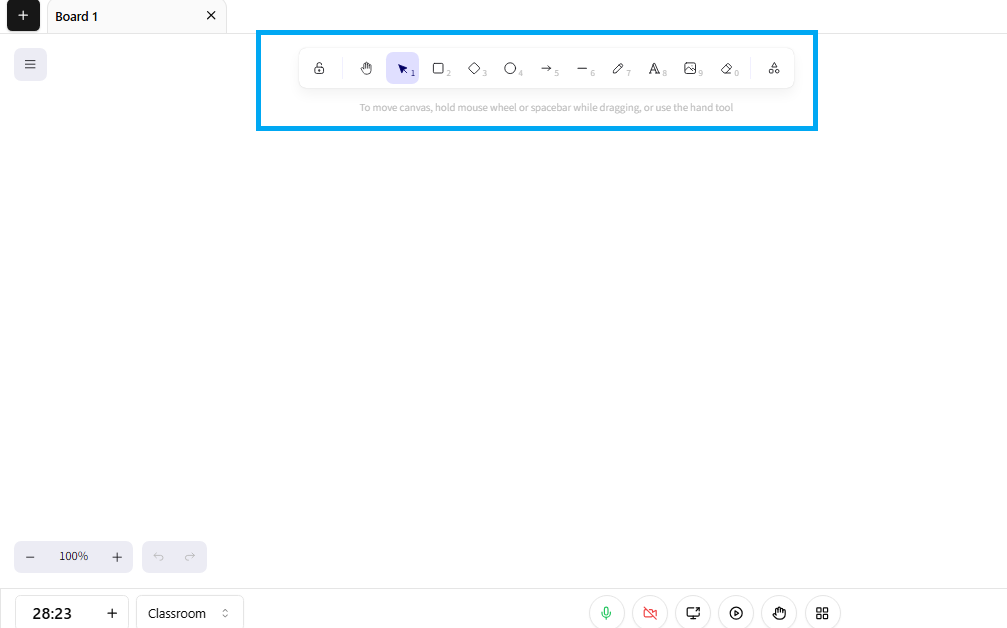
Your primary workspace toolset & Icon Function Use Case
Lock Tool: Locks elements so they can't be moved by mistake.
Select Tool: Select and move items on the canvas.
Rectangle Tool: Draw boxes for diagrams or highlights.
Diamond Tool: To make diamond shapes (excellent for flowcharts).
Circle Tool: To draw circles or ellipses for diagrams.
Arrow Tool: To make arrows to indicate direction or links.
Line Tool: To draw lines for separation or diagrams.
Pen Tool: Freestyle drawing for sketches or comments.
Text Tool: To place typed text anywhere on the canvas.
Image Tool: To upload and add images to clarify concepts.
Connector Tool: To connect shapes and objects for flowcharts.
3. Canvas Controls (Bottom-Left)
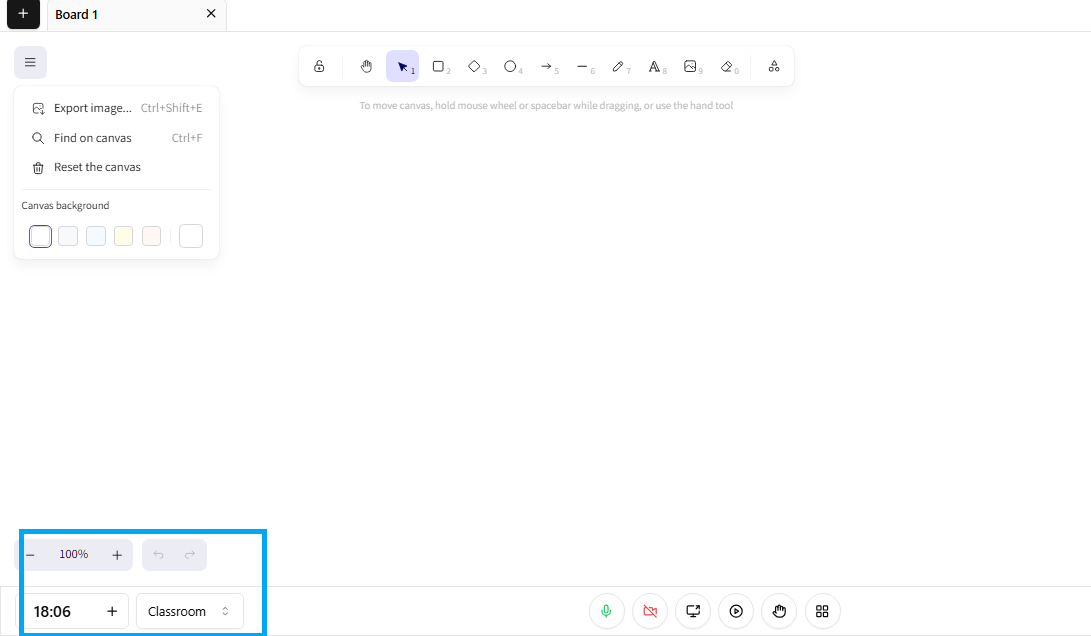
Zoom In/Out (+ / −): Change your perspective of the board.
Undo/Redo Arrows: Move backward or forward in your changes.
Time Display: Displays the session time. You can increase the time by clicking the + button
ClassRoom/Session/Meeting: Change between different boards or rooms.
4. Classroom Controls (Bottom-Center & Right)
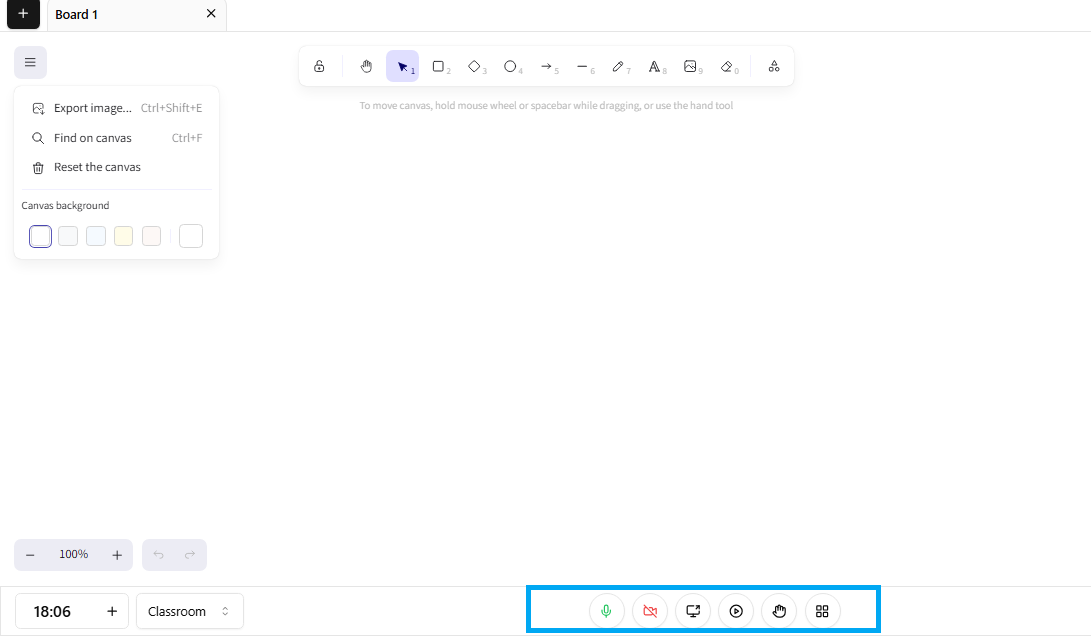
Mic Control: Microphone on/off.
Mute All: Mute all participants.
Screen Share: Share your screen with the class.
View Mode: Toggle presentation and collaboration views.
Hand Tool: Drag around the board.
Board List: See and control multiple boards during the session.
Quick Tips for Newbies
Use the Select Tool (the arrow icon) to drag or resize anything.
Double-click using the Text Tool to type rapidly.
The Connector Tool is your friend when creating flowcharts.
Alter the background color if you require contrast for drawings or text.
Always save your work prior to resetting the canvas to prevent losing significant notes.