

1. My Library
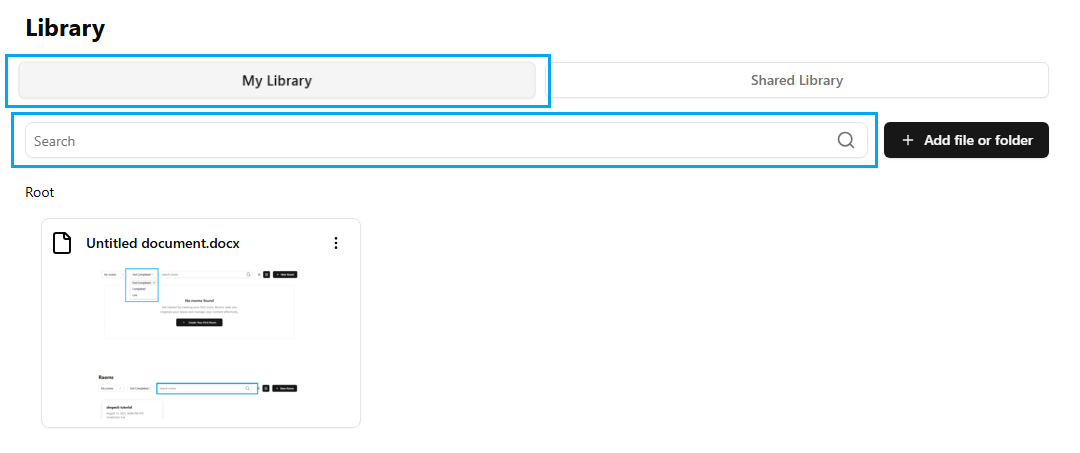
When you open My Library, you will view all the files and folders you have uploaded. It is your space, and only you can organize or alter the content within.
2. Search Bar
If you don't recall where a file is saved, you can simply enter its name in the Search Bar. The system will immediately show you the file, saving your time and energy.
3. Uploading Files and Folders
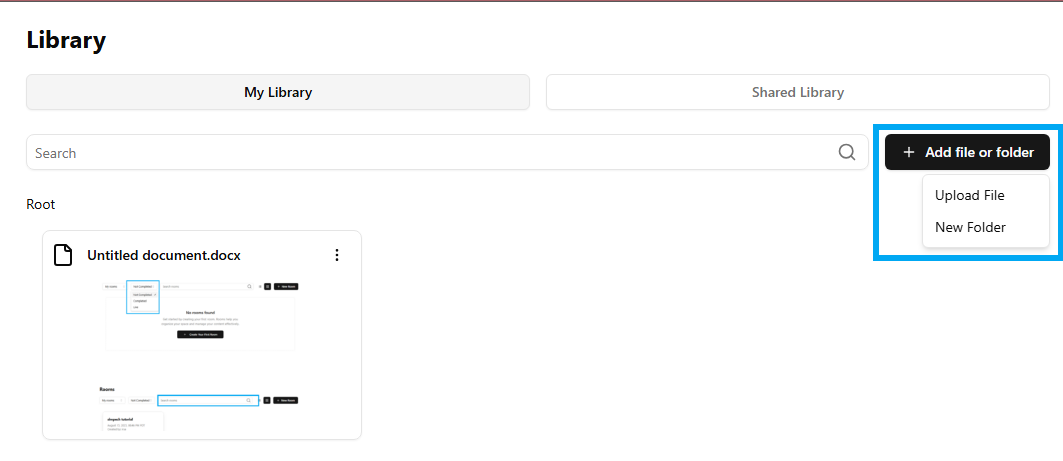
Adding files to your Library is easy. You have two options:
Upload File

Click Add File or Folder and select Upload File.
A window appears on your screen.
Choose the file on your computer and approve the upload.
The file now resides in your Library and is ready to be used.
Create New Folder
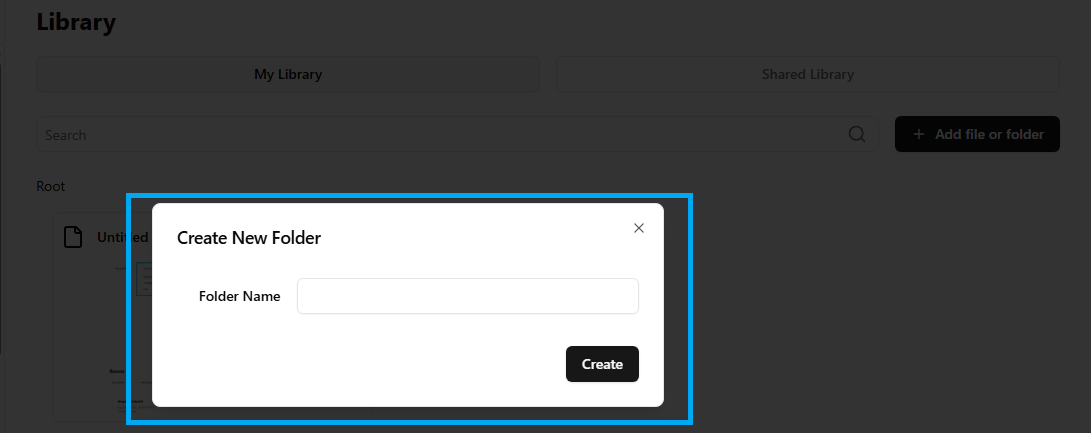
In case you wish to keep things tidy:
Click New Folder.
A tiny window will pop up, enter a name for your folder (e.g.: Assignments or Class Notes).
Click Create, and your folder will be created.
You can now add files to this folder and keep everything in order.
4. File Options in the Library
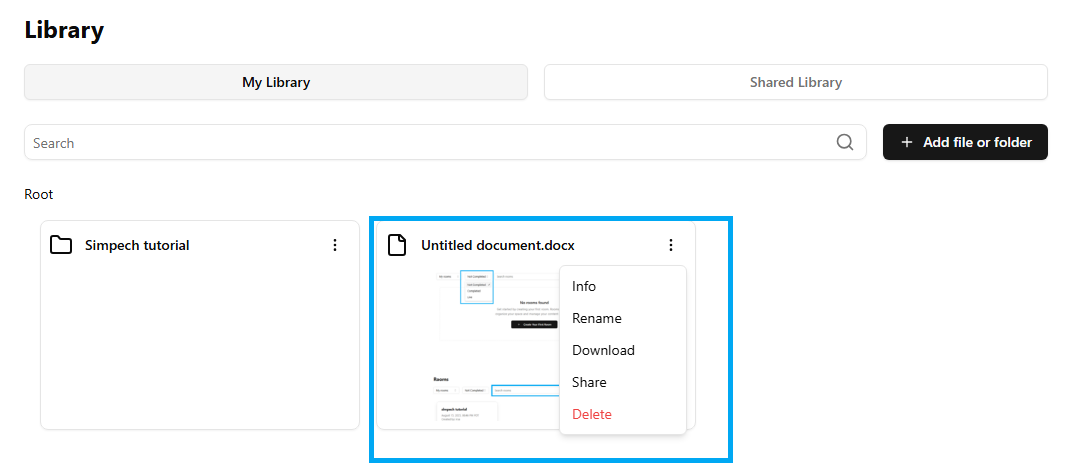
Each file you upload has a set of management options. By clicking on the three dots (⋮) beside a file, you can:
View Info: View information about the file.
Rename: Change the file name to something easier to recognize.
Download: Save a copy of the file back to your computer.
Share: Send the file to other users directly from Simpech.
Delete: Remove the file from your Library if it’s no longer needed.
Summary
The Simpech Library operates exactly like the folders in your computer, but it's online and can be accessed anywhere. You can upload, rename, arrange, share, and delete documents at any time you want. It's made to be easy and for beginners, so even those who are using it for the first time can store and keep their documents without hassle.