
Simpech Virtual Classroom calendar is a robust tool used for scheduling that assists learners and teachers in staying on top of things. Below is a step-by-step procedure to use the core features of the calendar.
1. Switching Calendar Views

At the top-right-hand part of the calendar, the view switches allow you to switch between:
Month – Lists all events for the current month.
Week – Provides a weekly detail.
Day—Displays events for a given day.
Agenda—Displays future events in a timeline view.
To switch the view, just click the corresponding button.
2. Moving Between Dates
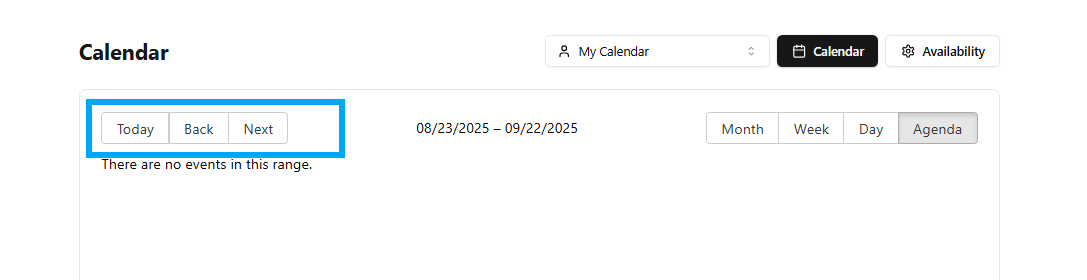
Employ the Today, Back, and Next buttons (top-left) to move to today's date or move forward/backwards in time.
3. Viewing and Filtering Calendars

At the top of the calendar, click the drop-down menu with the label "My Calendar." This enables users to:
View your own events.
This is particularly useful when coordinating group activities or checking other users' schedules.
4. Event Details
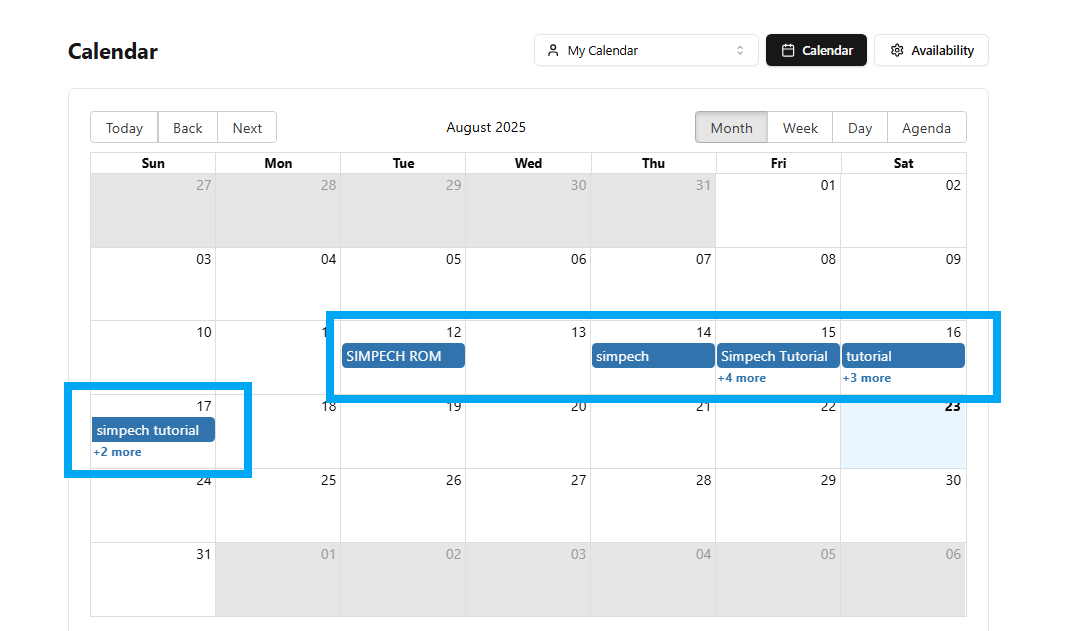
Such events as SIMPECH ROM, Simpech Tutorial, etc., are represented in blue boxes on the calendar. Click to see more information. If you notice a label such as "+2 more" or "+4, click it to open and see all concealed events for the day.
Last Tip:
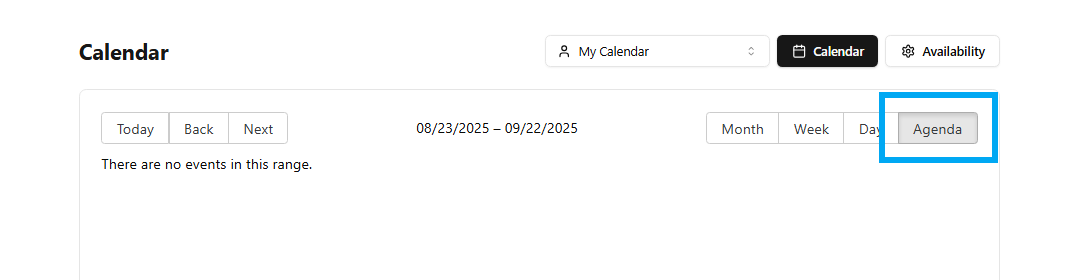
Toggle the Agenda view when you need a short list of sessions coming up without having to browse through dates.
By learning these attributes, individuals can effectively manage time and never fail to attend a valuable Simpech session!