
How to Make an Assignment in Simpech
Assignments are an excellent way to assess learning outside the live classroom. Creating assignments in Simpech is easy and time-saving for teachers. You can add instructions, embed files, set deadlines, and even control grading options, all in quick order. Let's go through the process step by step.
Step 1: Write a Title
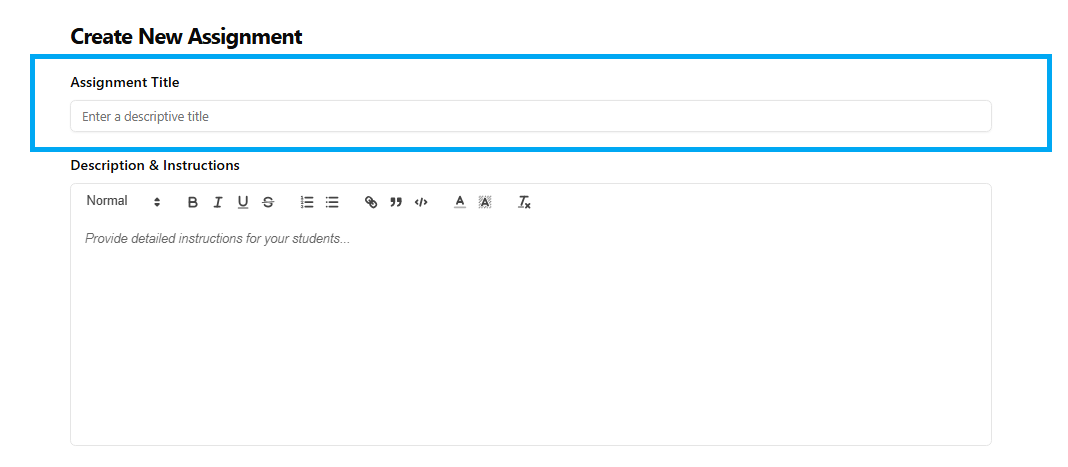
Begin by assigning your task a distinct and descriptive title. For instance, "Chapter 3 Review Assignment" or "Essay on Climate Change." A good title allows students to immediately know what the task is for.
Step 2: Include a Description
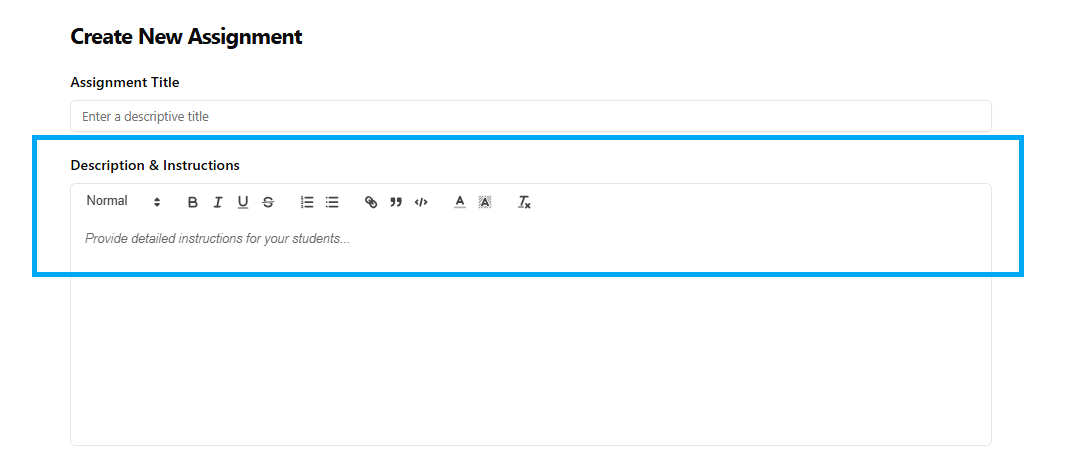
Then, offer a detailed explanation of the task. Here you can include instructions, guidelines, or questions you wish students to respond to. The description helps students understand exactly what they are required to do.
Step 3: Attach Files (Optional)
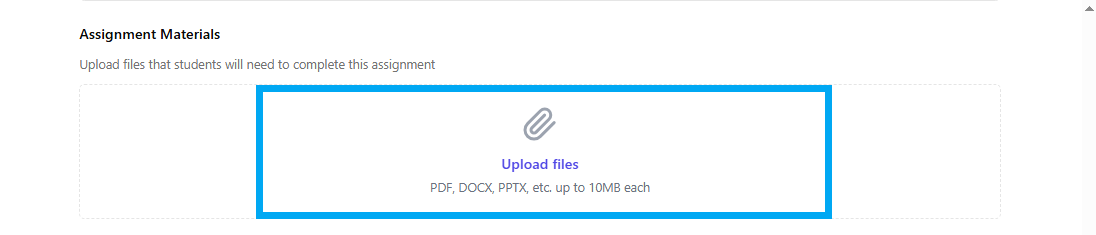
If you need to share reference material, worksheets, or examples, attaching files is simple. PDFs, Word documents, images, or any other resource that facilitates students in performing the task better can be easily attached.
Step 4: Select Due Date and Time
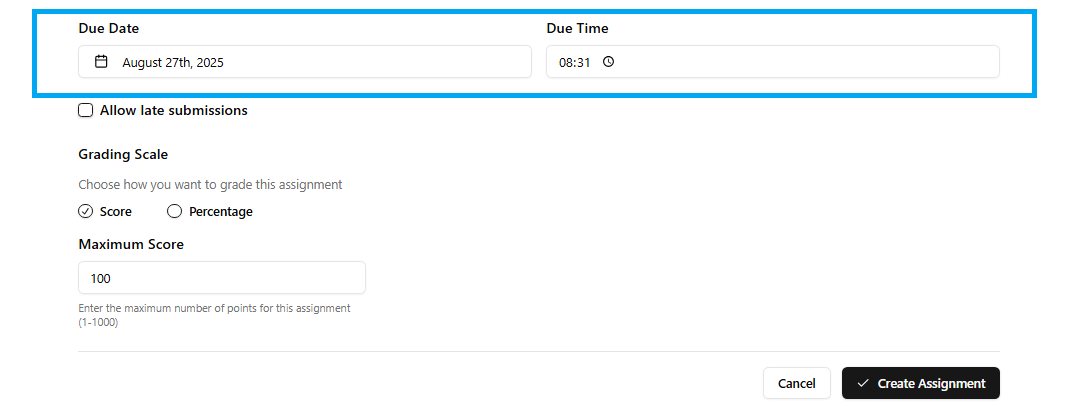
To maintain organization, make a due date and submission time. This keeps students on track with their calendars and ensures work is completed on time. Teachers can always determine who submitted work by the deadline and who didn't.
Step 5: Allow or Disallow Late Submissions
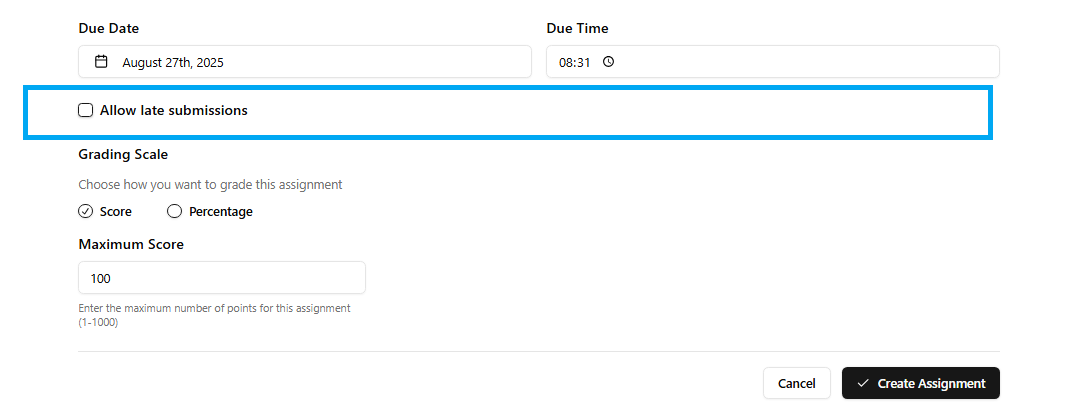
Simpech provides you with the capability to permit or prevent late submissions. When enabled, students can submit submissions even after the deadline. When disabled, no submissions will be accepted when the due date has passed. This provides teachers complete control of assignment rules.
Step 6: Choose Grading Scale
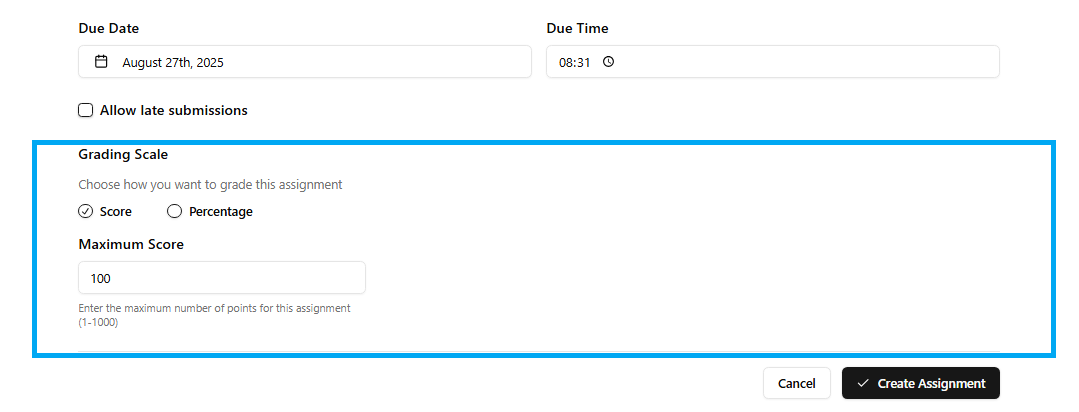
Lastly, select the grading scale. Simpech provides two choices:
Percentage) Grades will display in percentages.
Score Grades will display in numeric points.
Choose the one that suits your class teaching style or school guidelines.
Final Tip
After everything is ready, check your assignment settings and publish it. Students will be able to see the task immediately in their dashboard and can begin working on it without delay.