
Quizzes are one of the best tools to engage learners and test how well they have understood after a lesson. Creating a quiz in Simpech Virtual Classroom is easy and does not need any technical expertise. As a teacher, trainer, or coach, you can make interactive quizzes within a few clicks. Here's the step-by-step guide to help you begin.
Step 1: Click the Pencil Icon

To edit your quiz, find the pencil icon. It is your editing button. When you click on it, you can access the quiz editor in which you can create, edit, and arrange all your quiz questions.
Step 2: Add a New Section

Occasionally, you might prefer to segment your quiz into various sections like multiple choice, short answers, or matching. Simpech facilitates this with the "Add New Section" feature. Each section assists in categorizing questions for improved flow and organization, making the quiz more accessible for students to try.
Step 3: Check Total Questions and Points
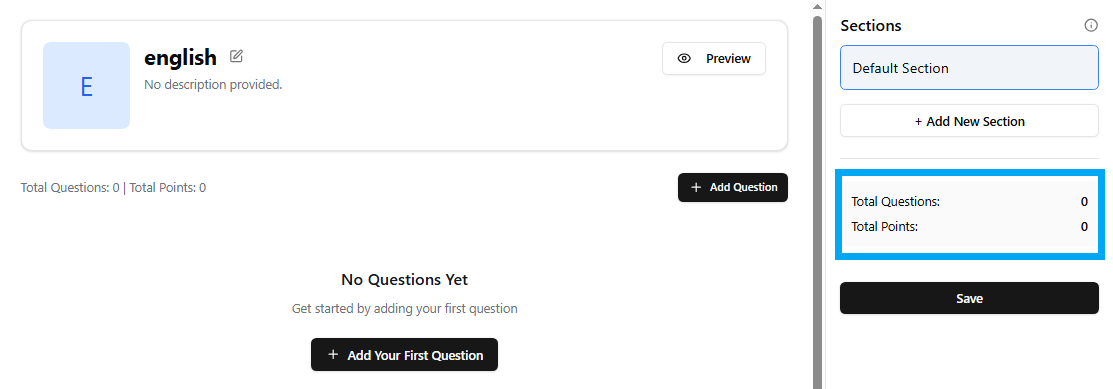
On the quiz board, you will see an overview panel indicating how many questions and what total points you have. This is useful in monitoring how many questions you've incorporated and how much each question is worth. It's useful when creating well-balanced quizzes with the appropriate proportion of simple and difficult questions.
Step 4: Create Your First Question
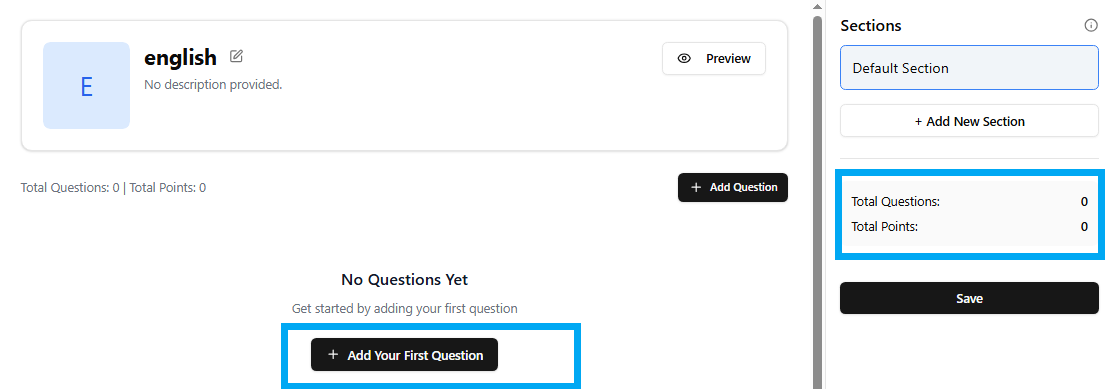
And then comes the best part: posting your first question! Simply click "Add Your First Question". You can type out the question, include answer choices (if it's multiple choice), and put points on it. Simpech allows you the flexibility to post as many questions as you want so that you can customize the quiz to suit your teaching objectives.
Save the changes
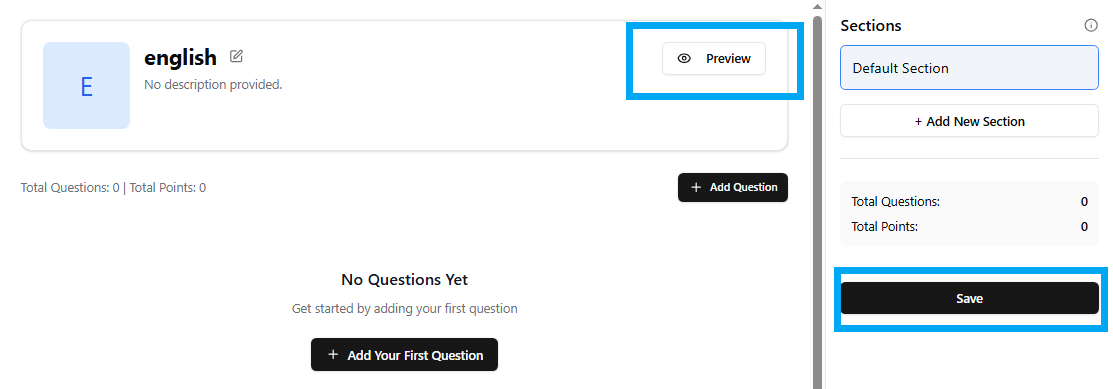
When you're finished, take a close look at the quiz. Look for question flow, double-check points, and take a preview as a student. If everything looks perfect, save your quiz by clicking on the save button.
With Simpech, quiz-making is rapid, streamlined, and efficient, allowing you to make learning more engaging and enjoyable.