
How to Chat with an Instructor in Simpech Virtual Classroom
This tutorial describes how to initiate a chat with an instructor and configure chat group settings in Simpech Virtual Classroom.
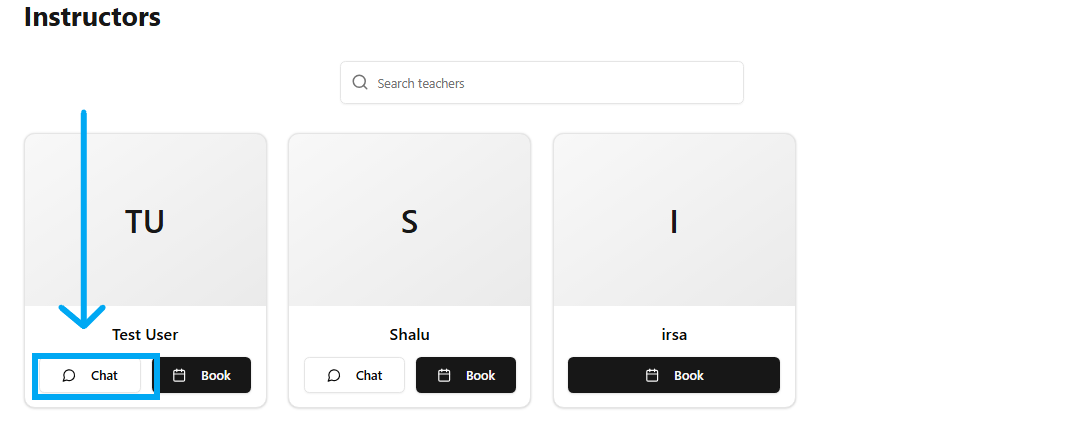
Navigate to the Instructors section.
Select the instructor that you wish to chat with.
Click the Chat button below the instructor's name. The Chat button initiates a conversation window with the chosen instructor.
Step 2: Open Group Settings
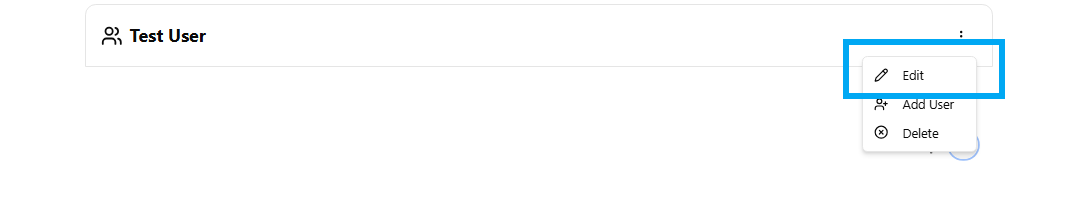
Click the three dots beside the group name in the chat window.
Choose Edit from the options. The Edit function enables you to modify the chat group information.
Step 3: Modify Group Information
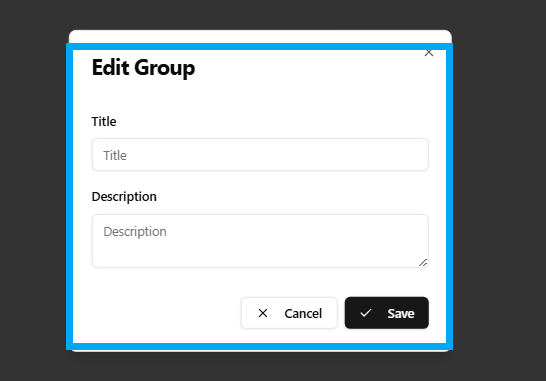
A form will open with fields for Title and Description.
Type the new group name or description.
Click Save to save. Utilize this space to provide the chat group with a title and purpose that is clear.
Step 4: Add Users to Group
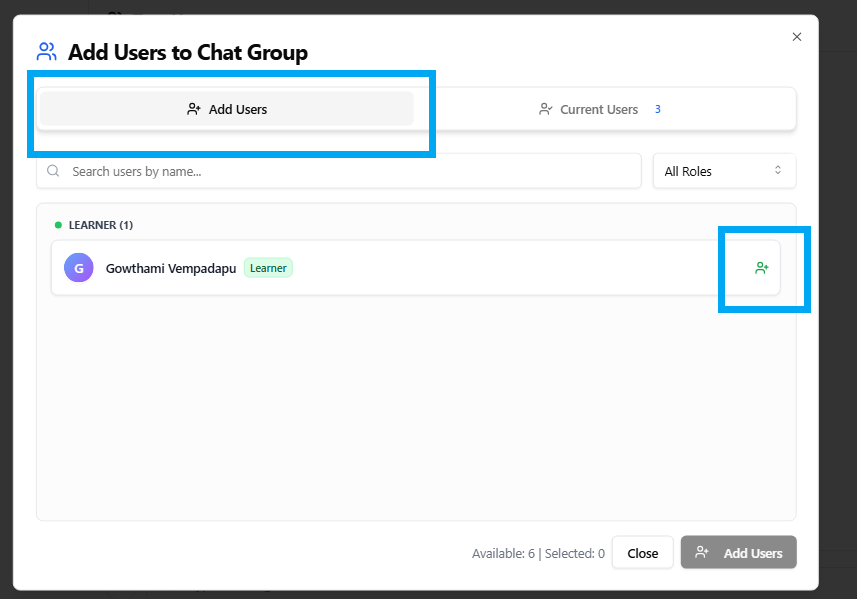
Click on the Add Users tab.
Utilize the search bar to locate users.
Click the green icon to add them to the group.Add Users tab and green icon allow you to add new members to chat groups.
Step 5: View or Remove Users
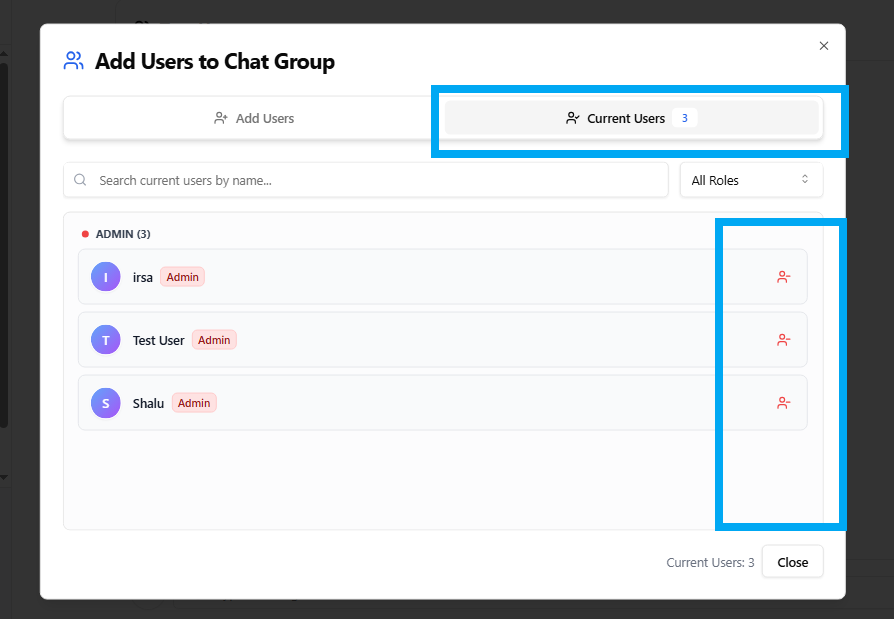
Click the Current Users tab to view who is in the group.
To delete a person, click the red icon beside their name. This area allows you to view all existing members and delete them if necessary.
Step 6: Send Messages or Attach Files

Type in your message in the text box.
Click the send icon to send the message.
Click Attachment or the plus icon to upload files. The Attachment and + icon allow you to send files in the chat.